Notification Forwarding: Taking Your iOS Notification Experience Further
ZEPP OS 6
FEATURE
Amazfit devices have started rolling out support for iOS Notification Forwarding as a Beta feature.
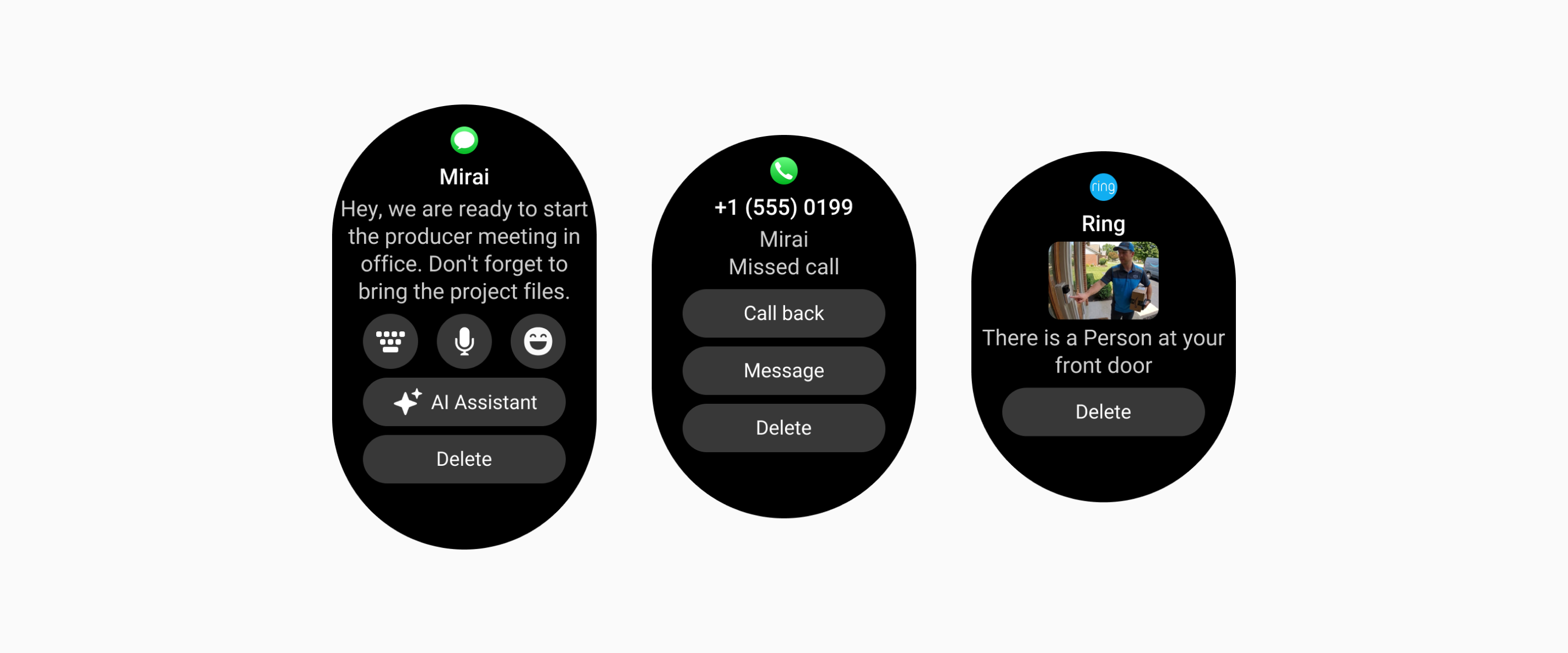
For iPhone users, this marks a long-awaited upgrade to the notification experience. With Notification Forwarding, you can do more than simply view iPhone app notifications on your Amazfit device. You'll also be able to take action on notifications directly from your device, and even reply to messages.
This brings the iOS notification experience on Amazfit devices closer to a more native and interactive experience.
What Is Notification Forwarding?
Notification Forwarding is a new notification feature that Apple has made available in selected regions starting with iOS 26.5. It allows iPhone notifications to be forwarded to an accessory device, where the accessory can receive, manage, and respond to those notifications.
Previously, iPhone users could mainly view alerts on their watch. When a notification arrived on the phone, the device would mirror and display the notification content. With Notification Forwarding in iOS 26.5, notifications are no longer limited to simple text mirroring. They can now become interactive.
In other words, some actions you would normally take from Notification Center on your iPhone can now also be completed directly from your Amazfit device.
For example:
For message notifications that support replies, you can reply directly from your device.
For notifications with quick actions, you can take the available action directly from your device, such as calling back from a missed call notification.
For notifications that include images, you can view the notification image on your device.
How to Enable Notification Forwarding
Apple's iOS notification forwarding capability is still limited in stability. After enabling this feature, you may occasionally experience issues such as notifications not arriving on your device, replies failing to send, notification deletion status not syncing, or app icons and notification images failing to load.
If you run into issues, we recommend submitting feedback and uploading logs first to help us investigate and improve the experience. You can also try restarting your iPhone to see if that resolves the issue.
Once your iPhone is updated to iOS 26.5 or later, your Zepp App is updated to version 10.5.5 or later, and your Amazfit device is running a software version that supports Notification Forwarding, Zepp App will prompt you to enable Notification Forwarding when you open the app.
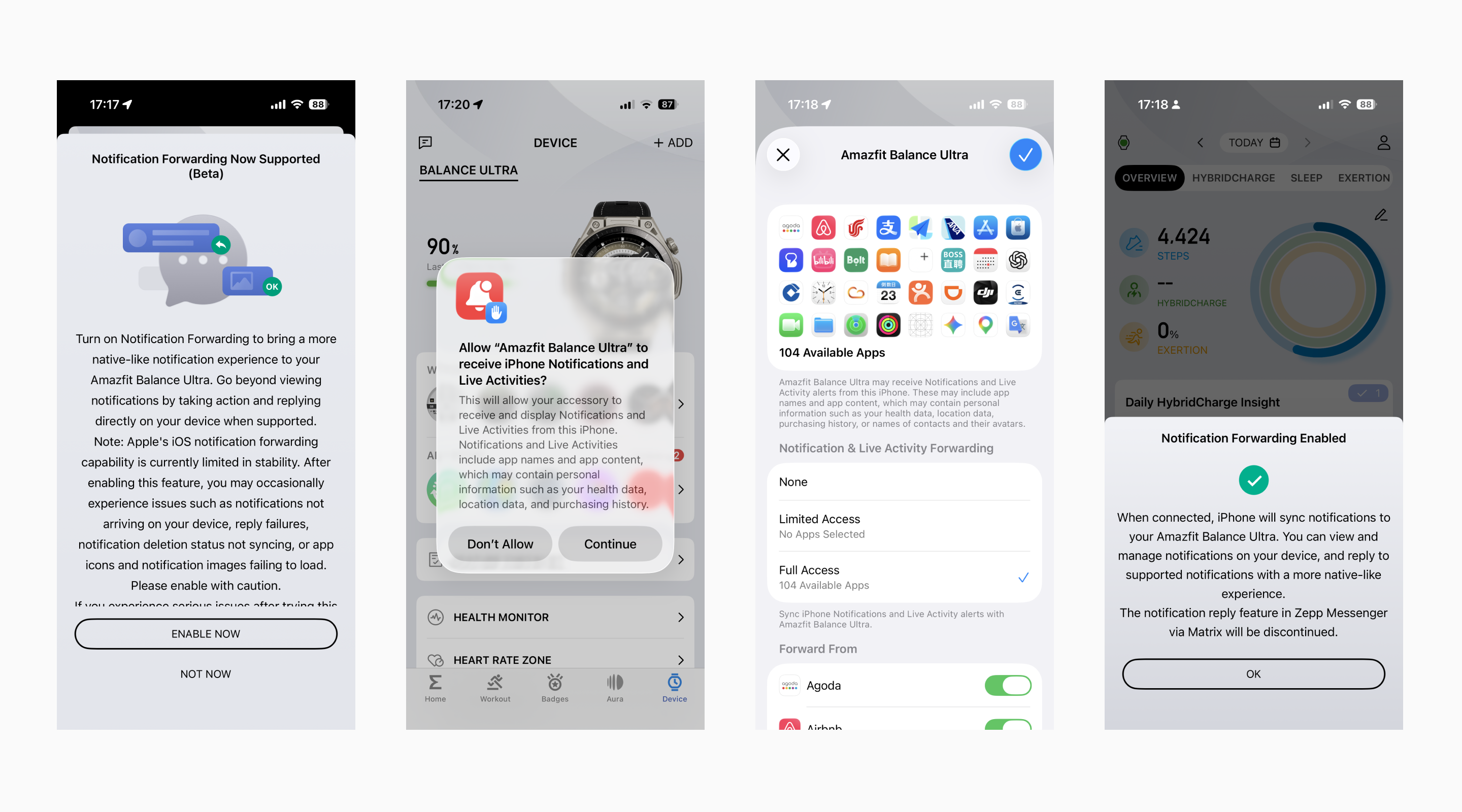
To enable it, follow these steps:
When you see the "Notification Forwarding Now Supported" prompt in Zepp App, tap "Enable Now".
When the iOS permission prompt appears, tap "Continue".
Choose which app notifications you want to forward to your device.
After setup is complete, notifications from the apps you selected will be forwarded to your device.
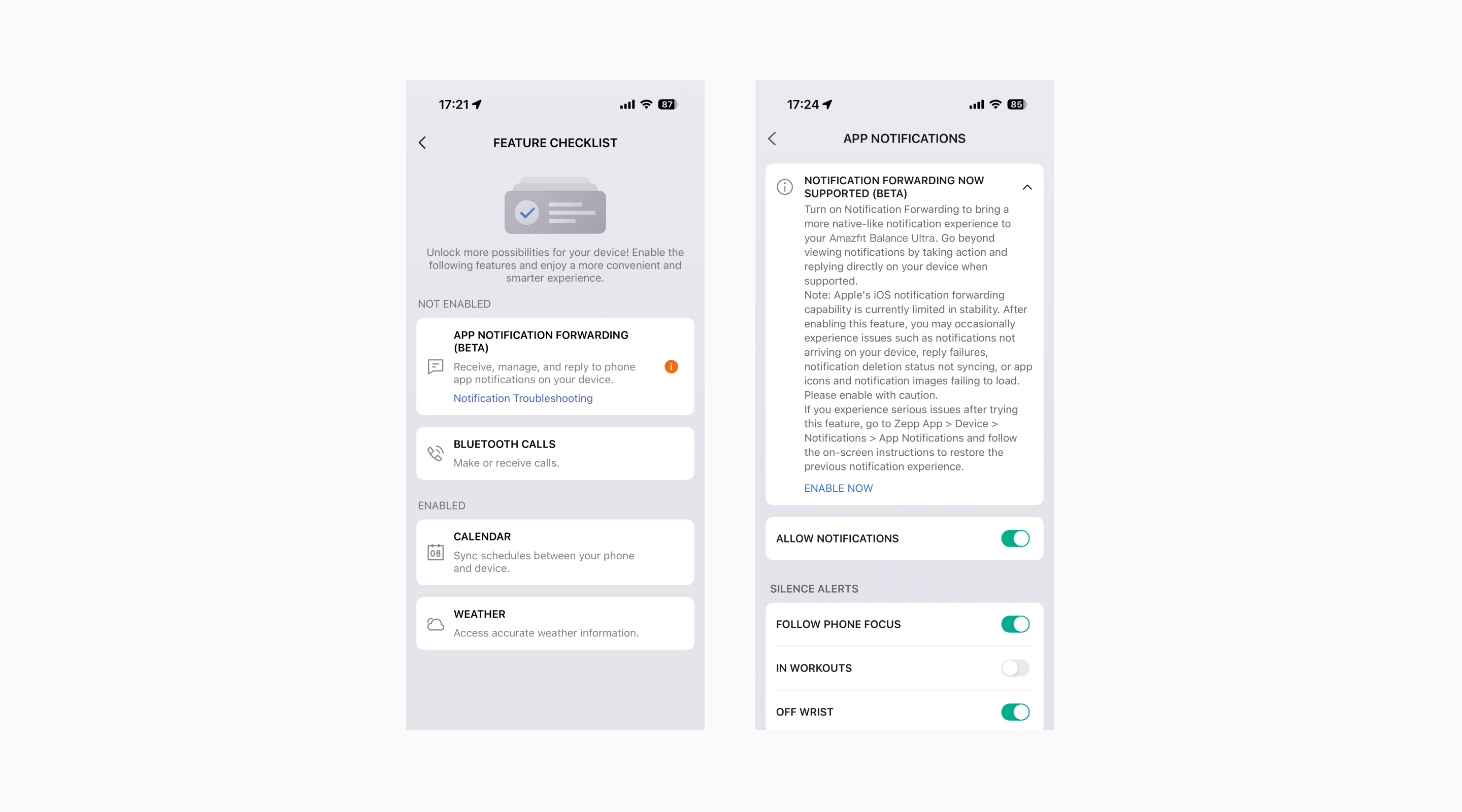
If you missed the prompt, or selected "Not Now" at first, you can enable Notification Forwarding later in Zepp App from either of the following pages:
On either page, you can find the Notification Forwarding card and enable Notification Forwarding again.
What Are the Limitations?
Region and system availability
Notification Forwarding relies on Apple's support and is currently available only to eligible iOS users. At this stage, it is temporarily available only to users in the EU. Whether you can use it may depend on your iOS version, the country or region of your Apple Account, where you are using your iPhone, and Apple's availability rules.
Not all app notifications will be forwarded
Which app notifications can be forwarded is controlled by your iPhone settings. You can review and adjust which app notifications are allowed to be forwarded in iPhone Settings.
Not all notifications support replies
A reply option will appear on your device only when the notification itself supports replies and iOS forwards the reply action to the device.
Live Activities are not supported yet
iOS Live Activities are not supported at this stage. Notification Forwarding currently applies mainly to standard iPhone app notifications.
Rollout Plan
Notification Forwarding is rolling out in phases. It is first available to eligible users on the following devices:
Cheetah 2 Ultra (version 6.1.114.1)
Balance Ultra (version 6.1.114.1)
Balance 3 (version 6.1.114.1)
Support will continue expanding gradually to more devices, including:
Active 3 Premium
Cheetah 2 Pro
T-Rex 3
T-Rex 3 Pro 44mm
T-Rex 3 Pro 48mm
T-Rex Ultra 2
Active MAX
Bip Max
Balance 2
Additional devices running Zepp OS 6 or later
We'll continue expanding support to more devices and improving the notification experience. Please keep Zepp App and your device software up to date to get access to the latest features as soon as they become available.
Frequently Asked Questions
Why didn’t I see the “Notification Forwarding Now Supported” prompt in Zepp App?
This may happen for one of the following reasons:
Your current device does not support Notification Forwarding yet.
Your device has not been updated to a supported version.
Your Zepp App version does not meet the requirement.
Apple has not made Notification Forwarding available to you yet.
You previously selected “Not Now”.
You can also check whether Notification Forwarding can be enabled again from:
You need to meet all of the following requirements:
Your iPhone has been updated to iOS 26.5 or later;
Zepp App has been updated to version 10.5.5 or later;
Your Amazfit device has been updated to a version of Zepp OS 6 or later that supports Notification Forwarding;
Your current region and Apple Account region meet Apple’s availability requirements.
At this stage, this capability is temporarily available only to eligible users in the EU. Actual availability is subject to Apple’s system policies.
Why is Notification Forwarding currently available only in the EU?
Notification Forwarding is an iOS capability made available by Apple in response to requirements related to the Digital Markets Act (DMA). Under Apple’s current rules, this capability is temporarily available only to eligible users in the EU.
This means users outside the EU may not be able to use Notification Forwarding at this time, even if their iPhone has been updated to iOS 26.5 or later. EU eligibility is determined by Apple’s system and may depend on factors such as your current location, Apple Account region, and other system rules. Zepp App cannot determine or change this result.
Future availability is subject to Apple’s system policies.
What known issues may occur in the current version?
Notification Forwarding is a newly available Apple system capability, and the current experience may not be fully stable yet. You may encounter the following issues:
Some notifications may not be forwarded to your device.
Notification action buttons may not work after being tapped.
Some notifications can be viewed on the device but cannot be replied to successfully.
Some notification images may not appear or may appear blurry.
Notifications deleted on your phone may not be deleted from your watch, and vice versa.
After your device reconnects to your phone, Notification Forwarding may take some time to resume.
These issues may be related to Apple’s current system implementation. We are aware of these cases and will continue to follow system capability updates and improve the experience in future versions.
What should I do if Notification Forwarding is not working properly?
If Notification Forwarding is not working as expected, such as notifications not being forwarded, replies failing, images displaying incorrectly, or notification deletion not syncing between your phone and watch, you can try the following:
Make sure your iPhone and device are connected.
Make sure Zepp App and your device software are updated to the latest versions.
Check the Notification Forwarding permission and app forwarding scope in iPhone system settings.
Check whether notification permission is enabled for the app on your iPhone.
Restart your Amazfit device.
Restart your iPhone.
Reopen Zepp App and wait for the device to complete connection and syncing.
If the issue continues, it may be related to the current stability of Apple’s iOS system capability. We recommend waiting for future iOS updates, or keeping an eye on future Zepp App and device software updates.
What can I do if the current version seriously affects my daily use?
If you have enabled Notification Forwarding but the current issues are seriously affecting your daily use, you can restore the previous notification experience.
Go to Zepp App > Device > Notifications > App Notifications, tap the Restore button in the Restore Previous Notifications banner at the top of the page, then follow the on-screen instructions to remove the device and pair it again. After that, you can receive notifications using the previous method.
After restoring, you will no longer be able to use the new capabilities provided by Notification Forwarding, such as taking action on notifications or replying to messages from your device. However, you can still use the previous basic notification alert experience.
Can I choose which app notifications are forwarded to my device?
Yes. The forwarding scope is controlled by iPhone system settings.
During setup, you can choose which app notifications are allowed to be forwarded. After setup, you can also go to iPhone Settings > Bluetooth, tap the ⓘ next to your device name, then tap Notifications under Forwarding to adjust which app notifications are allowed to be forwarded.
Why am I not receiving notifications, or only receiving notifications from some apps, after enabling Notification Forwarding?
This usually happens because the Notification Forwarding scope is set to “None” or “Limited Access”.
You can go to iPhone Settings > Bluetooth, tap the ⓘ next to your device name, then tap Notifications under Forwarding to adjust which app notifications are allowed to be forwarded.
Also make sure that notification permission is enabled on your iPhone for the apps you want to receive notifications from.
Why can’t I find a certain app in the Notification Forwarding list?
The Notification Forwarding list is managed by iOS. Some apps may not appear in the forwarding list right away, or may only be recognized by the system after they have sent a notification.
You can first make sure notification permission is enabled for that app on your iPhone. Then let the app receive a notification on your phone and check the Notification Forwarding settings again.
Why can I view some notifications but not reply to them?
Not all notifications support replies.
A reply option will appear on your device only when the notification itself supports replies and iOS forwards the reply action to the device. Support may vary by app and notification type.
For example, message notifications from iMessage and WhatsApp may support replies, while system notifications, promotional notifications, or reminder-style notifications may not.
Why did my notification reply fail?
Notification replies may be affected by iOS system behavior, app status, network connection, or whether the notification itself is still valid.
You can try the following:
Make sure your phone network is working properly.
Make sure your device and phone are connected.
Make sure the notification can still be replied to from Notification Center on your phone.
Check whether the corresponding app is receiving messages normally on your phone.
If the issue continues, it may be related to the current stability of Apple’s iOS system capability. We recommend waiting for future iOS updates, or keeping an eye on future Zepp App and device software updates.
Why do some actions appear on iPhone but not on my watch?
The action buttons shown on your device depend on the notification actions that iOS actually forwards to the device.
If iOS does not forward a certain action to the device, the corresponding button may not appear on your watch, even if you can see that action on your iPhone.
Why don’t chat images appear on my device?
Whether chat images can be shown depends on whether the messaging app includes the image in the notification, and whether iOS forwards that image to the device.
For privacy, notification style, or system policy reasons, some messaging apps may only provide text content in notifications and may not forward chat images as notification images. As a result, even if you can see the image inside the app on your phone, the notification on your watch may only show text.
Why are notification images sometimes blurry?
Notification images are forwarded to the device by iOS. We have found that images from some app notifications may be forwarded to the watch at a lower resolution. For example, WhatsApp notification images may appear less clear on the device.
This does not mean there is an issue with the device display. It may be related to the image content currently forwarded by iOS. We are aware of this issue and will continue to follow future system capability updates.
Does Notification Forwarding support iOS Live Activities?
Not at this stage.
Notification Forwarding currently applies mainly to standard iPhone app notifications.
Can I still receive notifications without enabling Notification Forwarding?
If you did not receive the “Notification Forwarding Now Supported” prompt, or if you tapped “Not Now”, you can still continue using the previous basic notification alert experience to view phone notifications on your device.
However, without Notification Forwarding, you will not be able to use the new interactive notification capabilities, such as taking action on notifications or replying to messages from your device.
Can I go back to the previous notification experience if I don’t like Notification Forwarding?
Yes.
Go to Zepp App > Device > Notifications > App Notifications, tap the Restore button in the Restore Previous Notifications banner at the top of the page, then follow the on-screen instructions to remove the device and pair it again. After that, you can receive notifications using the previous method.
After restoring, you will no longer be able to use the new capabilities provided by Notification Forwarding, such as taking action on notifications or replying to messages from your device. However, you can still use the previous basic notification alert experience.
Why can’t Zepp Messenger / Matrix continue to be used for notification replies after Notification Forwarding is enabled?
For devices with Notification Forwarding enabled, notification replies will switch to the new iOS system Notification Forwarding capability and will no longer use the previous Zepp Messenger / Matrix reply path.
This helps make the notification reply experience closer to the native iOS system experience.